

Power Pivot is a powerful data analysis tool in Microsoft Excel that allows users to manage and analyze big data efficiently. With Power Pivot, users can create complex data models, connect different data sources, and perform analysis using DAX (Data Analysis Expressions). The tool makes it easy to build relationships between tables, overcoming the difficulties that often arise with traditional Excel functions such as VLOOKUP.
Launched as an add-in in Excel 2010, Power Pivot was developed by Microsoft to meet the needs of business managers in processing big data. Since Excel 2016, Power Pivot has become a built-in feature, allowing all Excel users to access it without additional installation, strengthening Excel as a data analysis tool.
With the integration of Power Pivot in Excel 2016, users can instantly access advanced features and build internal data models that function as in-memory-based analysis engines. This allows for faster data processing and complex analysis using DAX, improving Excel’s analytical capabilities and its position in the world of Business Intelligence (BI).
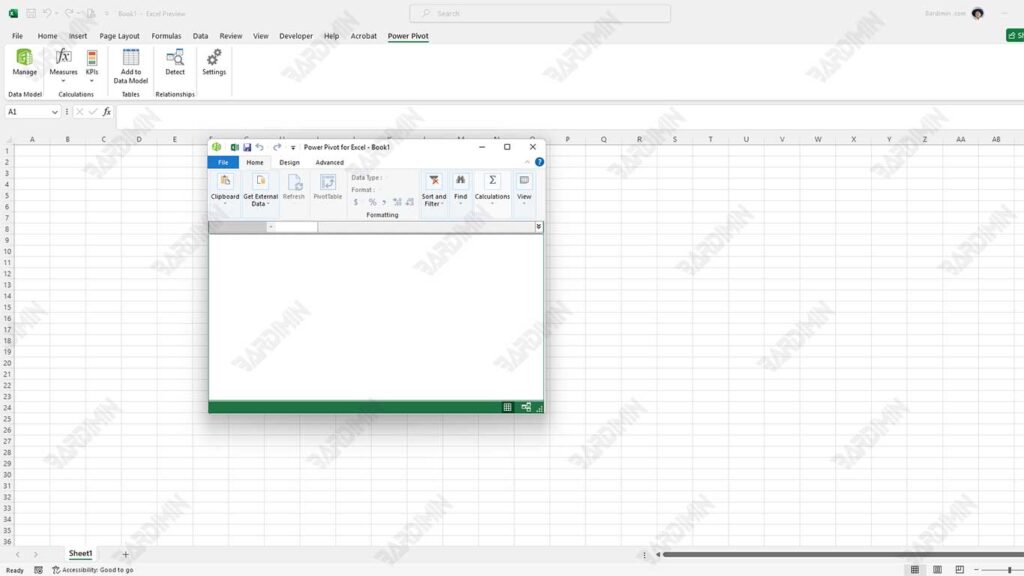
Building a Data Model with Power Pivot in Excel
Power Pivot provides great capabilities for Excel users to create complete and efficient Data Models. With advanced technologies such as the Internal Data Model and the xVelocity analytics engine, Power Pivot enables the processing of big data directly in Excel. Here is a further explanation.
What is an internal data model?
The Internal Data Model is an important part of Power Pivot that works to store, manage, and process data from various sources in a compressed way. With this model, users can combine tables from different sources into a single structure without the need for complicated formulas.
Through the Internal Data Model, users can:
- Create relationships between tables based on key columns, such as CustomerID or InvoiceID.
- Manage big data more efficiently without sacrificing Excel performance.
- Create always-connected reports and update automatically as changes to data sources.
How Does the Internal Data Model Work in Power Pivot?
Users can use the Internal Data Model to process big data with simple steps:
1. Import Data from Various Sources
Data can be retrieved from Excel tables, databases, cloud services, or text files. Once imported, this data will be managed in Power Pivot.
2. Data Compression and Storage
The technology in Power Pivot, the xVelocity analytics engine, automatically compresses data up to ten times smaller than its original size. It allows users to process millions of rows of data without disrupting Excel’s performance.
3. Relations Between Tables
Imported data can be correlated using the Diagram View feature in Power Pivot. This relationship makes it easy to analyze data without the need to use Excel functions such as VLOOKUP.
4. Automatic Updates
One of the advantages of the Internal Data Model is its ability to automatically update data when there are changes to its source. This ensures that reports and data analysis remain accurate and appropriate.
Advantages of the Internal Data Model
The Internal Data Model offers a variety of advantages that make it an essential tool for managing and analyzing big data in Power Pivot. Here are some of the advantages:
1. Efficient Data Compression
The xVelocity analytics engine technology used by Power Pivot allows data compression to be up to 10 times smaller than its original size. With this compression, you can load millions of rows of data into Excel without compromising performance, making it perfect for data analysis at scale.
2. Ease of Analysis for General Users
The Internal Data Model is designed so that ordinary Excel users, even those who do not have in-depth knowledge of databases or programming, can easily analyze the data. Features such as relationships between tables and automatic updates make the analysis process easier without the need for complicated formulas like VLOOKUP.
3. Easy Data Integration
Data from multiple sources, including Excel tables, databases, or online services, can be combined into a single Data Model. With easy-to-create relationships, users can create interactive and dynamic reports.
Limitations of the Internal Data Model
Despite its many advantages, the Internal Data Model also has some technical limitations that need to be noted:
1. Character Limit for Object Names
Object names such as tables or columns are limited to 100 characters. This can be a problem when dealing with complex datasets with long names.
2. File Size Limitations
Although data compression is very effective, Excel file sizes are still limited. If your Data Model contains very large amounts of data, Excel files can be difficult to manage or share.
3. Dependence on Memory Capacity
Because the Internal Data Model uses in-memory technology, the data processing performance is highly dependent on the memory capacity of the computer. On devices with limited memory, the analysis of big data can be slow.
Connecting Excel Data with Power Pivot
Connecting data in Excel with Power Pivot is an important step in creating a structured and efficient Data Model. Here’s a step-by-step guide to setting up your data for optimal use in Power Pivot.
Data Preparation for Power Pivot
Before using Power Pivot, make sure that the data in Excel is organized. Here are the steps:
1. Convert Data to Excel Tables
The data to be used in Power Pivot must be converted into an Excel table first. To do so, follow these steps:
- Select the data you want to use.
- Press Ctrl + T on the keyboard.
- In the Create Table dialog, make sure the My Table Has Headers option is checked.
- Click OK to convert the data to a table.
2. Give the Table a Descriptive Name
Once the data has been converted into a table, give it a descriptive name to make it easier to recognize in Power Pivot. You can change the table name in the Table Design tab in the Table Name section. Example of good table naming:
- Customers: This table contains customer information, such as CustomerID, name, and address.
- InvoiceHeader: This table stores key transaction information, such as InvoiceID, date, and transaction total.
- InvoiceDetails: This table contains transaction details, such as products, quantities, prices, and subtotals.
3. Check Data Consistency
- Make sure all tables have clear column headers and consistent data.
- Avoid blank or duplicate data that can interfere with the analysis in Power Pivot.
Add a Table to a Data Model in Power Pivot
Once you’ve converted the data into a structured table, the next step is to add it to the Data Model in Power Pivot. This allows you to start building Data Models that can be further analyzed with Power Pivot. Here are the steps to add a table to a Data Model:
1. Select Converted Table
After converting the data to a table (using Ctrl + T), select the table you want to add to the Power Pivot. Make sure that the table has a clear name and contains complete data.
2. Click Add to Data Model in the Power Pivot Tab
- After selecting the table, go to the Power Pivot tab in the Excel Ribbon.
- In this tab, you will find the option Add to Model Data. Click this option to add the selected table to the Power Pivot Model Data.
- Power Pivot will make a copy of the selected table and bring it to the Power Pivot window. The table is now part of Model Data and can be used to build relationships with other tables.
3. Table Displayed in Separate Tabs in Power Pivot Window
After the tables are added, each table that you import into Power Pivot will appear as separate tabs in the Power Pivot window.
- This Power Pivot window allows you to view, manage, and manipulate the data that has been added to Model Data.
- Each table in Power Pivot will be displayed with a name that you have predefined (for example, Customer, HeaderFaktur, or DetailFaktur).
Creating Relationships Between Tables
Creating relationships between tables in Power Pivot is an important step in building a good data model. These relationships allow users to associate information from various tables, making data analysis easier. Using Diagram View in Power Pivot, you can easily view and organize relationships between tables based on key columns such as CustomerID or InvoiceID.
How to Create a Relationship Between a Table and a View Diagram
1. Open the Power Pivot Window
After adding the table to the Data Model, open the Power Pivot window and select the Diagram View view. Here, you’ll see all the tables you’ve added along with their columns.
2. Define Key Columns
Specify the key fields that will be used to create the relationship. For example, use CustomerID to connect Customers tables to InvoiceHeader tables, and use InvoiceID to connect InvoiceHeader tables to InvoiceDetails tables.
3. Create Relationships
Click and drag the key column from one table to the corresponding key column in the other table. A dialog will appear to confirm the relationship to be created. Make sure the relationship type (one to many or many to one) is correct, then click OK.
Benefits of Inter-Table Relationships
1. Facilitates Data Integration
One of the main advantages of relationships between tables is the ease of integrating data. With the right relationships, you can access information from various tables without the need to use complicated formulas like VLOOKUP. This saves time and reduces the risk of errors in data analysis.
2. More Efficient Analysis
With the existence of relationships, analysis can be carried out more efficiently and in-depth. For example, you can easily create reports that show total sales per customer or analyze buying trends by product category without having to manually combine data.
3. Improved Analysis Performance
Relationships between tables allow the use of DAX for more complex calculations and faster data-driven decision-making. This is especially useful for users who need to create reports and dashboards regularly.
