

Locking your Chrome browser with a password is a critical security measure to protect sensitive data—such as saved credentials, cookies, and payment details—from unauthorised access, especially on shared or public devices. This article provides a technical deep dive into two leading Chrome extensions, LockPW and Browser Lock, covering installation, configuration, automation, recovery options, and performance trade-offs tailored for IT professionals, gamers, and system technicians.
Why Your Browser Demands a Dedicated Lock
Modern browsers have evolved far beyond simple web surfing tools; they now function as centralised repositories of personal and corporate assets. Stored passwords, persistent session cookies, autofill form data, and even saved credit cards reside within Chrome’s profile directory. When multiple users share a single workstation—common in development teams, gaming cafes, or home offices—the risk of credential theft and privacy leakage escalates sharply.
While Chrome offers native profile switching and guest mode, these features do not enforce mandatory authentication. A determined user can easily access another profile’s data without any barrier. Third‑party extensions fill this gap by adding a robust authentication layer directly at the browser startup or on demand. This article evaluates two of the most reliable solutions: LockPW and Browser Lock.
Most browser data breaches originate not from sophisticated exploits, but from unlocked terminals left unattended for mere minutes.
LockPW: Full‑Screen Authentication at Every Start
LockPW is an open‑source extension designed to lock the entire Chrome interface. Unlike lightweight pop‑up lockers, it overlays a full‑screen password prompt before any browser content becomes visible. This behaviour makes it particularly suitable for environments where strict compliance and zero‑trust access are required.
Installation and Configuration Workflow
- Extension acquisition: Visit the Chrome Web Store and add LockPW. Immediately after installation, the settings page launches automatically to guide you through password setup.
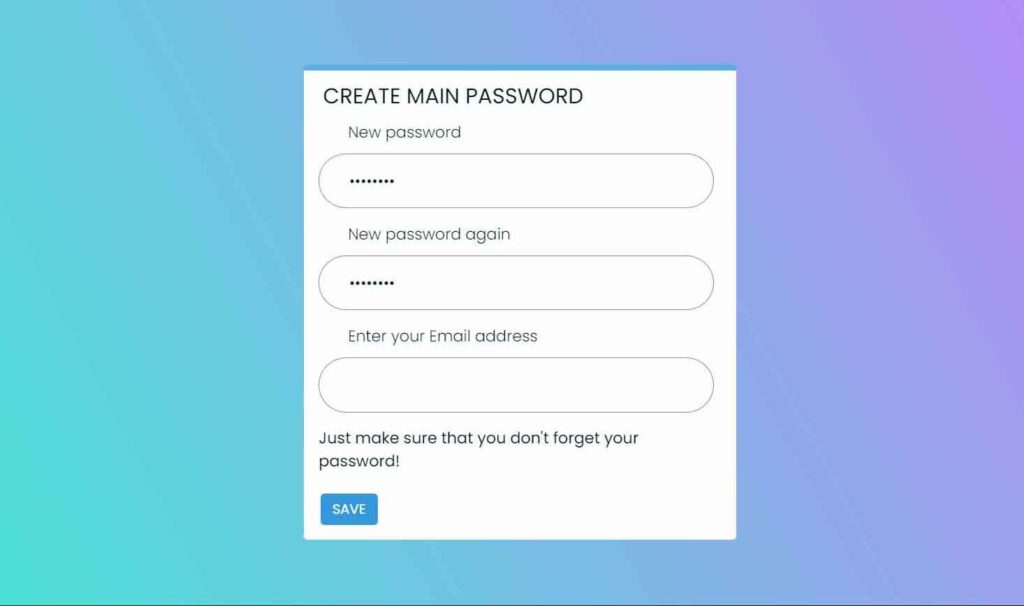
- Primary password creation: Define a string of at least six characters. LockPW stores this password locally using AES‑like encryption; no data is transmitted to external servers.
- Auto‑lock configuration: Enable the auto‑lock feature to automatically re‑lock the browser after a predefined idle period—configurable from 30 seconds up to 30 minutes. This is invaluable for technicians who frequently move between workbenches.
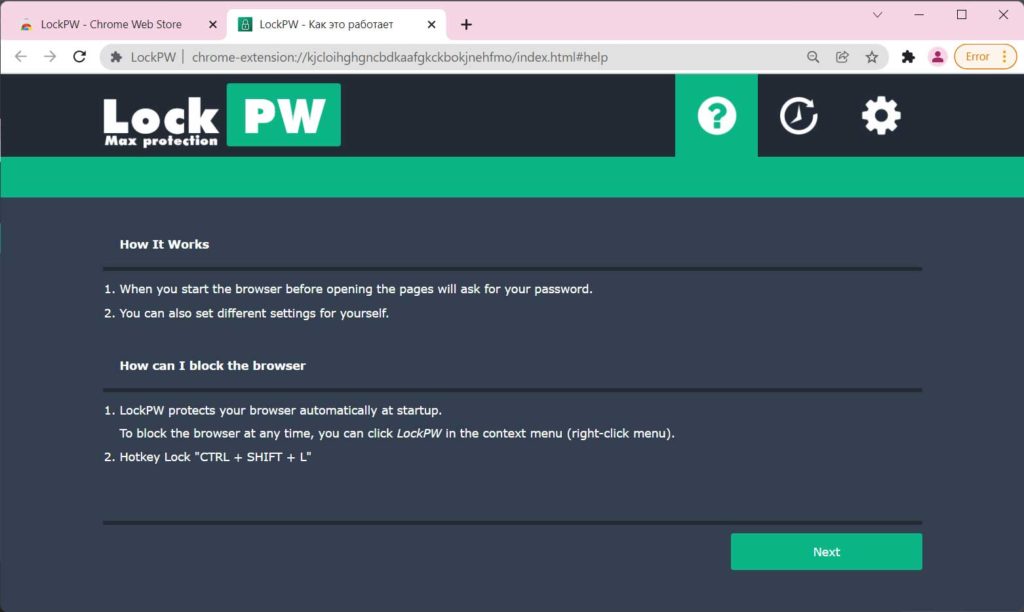
Once the master password is registered, every new Chrome session begins with the LockPW overlay. The user cannot minimise, close, or bypass this layer without supplying the correct credential. An optional email recovery mechanism can be activated, but many privacy‑conscious professionals prefer to keep recovery disabled and rely on password managers.
Known Limitations of LockPW
- Guest mode bypass: LockPW does not protect Guest profiles; a user who opens Chrome in Guest mode can browse freely without any password challenge.
- Potential extension conflicts: Some users have reported minor compatibility issues with tab‑management extensions (e.g., OneTab, The Great Suspender). Testing in a controlled environment is advised before enterprise rollout.
Browser Lock: On‑Demand Locking With Recovery Safeguards
Browser Lock takes a fundamentally different approach: it remains passive until the user explicitly triggers the lock. This design appeals to gamers and casual users who want to secure the browser only when they step away—without being prompted for a password at every system boot.
Step‑by‑Step Activation and Customisation
- Install Browser Lock from the Chrome Web Store. The installation completes in under five seconds.
- Create a strong password and supply a valid recovery email address. This email is mandatory—if you forget the password, the reset link will be sent here.
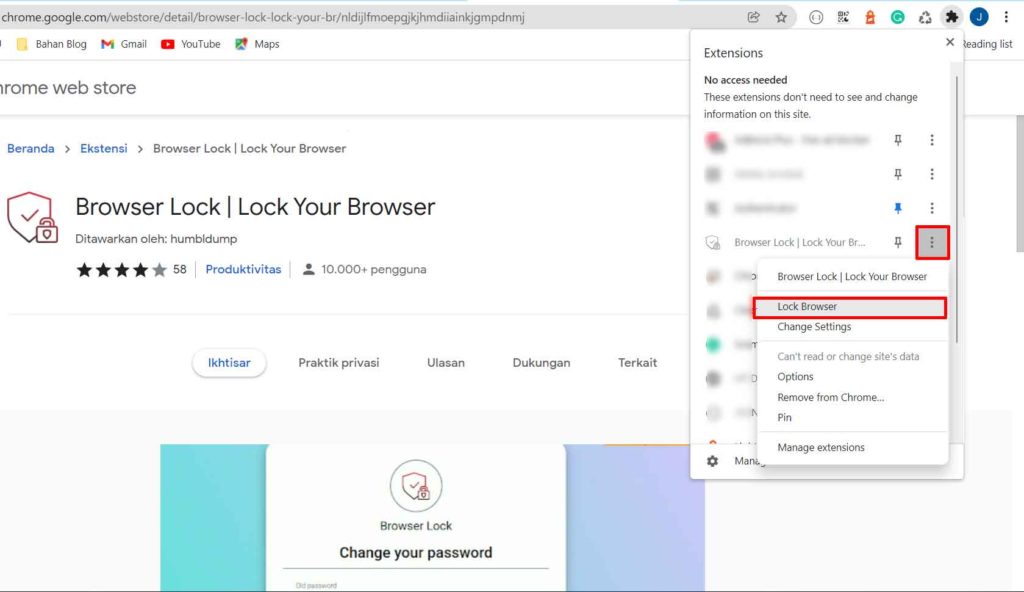
- After initial setup, a padlock icon appears in the extensions toolbar. Click it, open the three‑dot menu, and select “Lock Browser” to instantly activate the lock screen.
Unlike LockPW, Browser Lock does not offer any form of automatic locking. This puts full control—and full responsibility—in the user’s hands. The lock screen itself is minimalist but effective; it covers the active tab and prevents navigation until the correct password is entered.
Distinctive Features of Browser Lock
- Integrated password recovery: A forgotten password can be reset instantly via the registered email—no developer contact required.
- Stealth mode: The extension icon can be hidden from the toolbar, making it harder for an observer to detect that a locking mechanism is in place.
- Low resource footprint: Browser Lock consumes approximately 8 MB of RAM when idle, making it ideal for gaming rigs where every megabyte counts.
Browser Lock never locks the browser automatically. You must manually activate it each time you wish to secure your session—a deliberate design choice for users who prioritise flexibility over automation.
Head‑to‑Head: LockPW vs Browser Lock
Selecting the appropriate extension hinges on your operational model and security tolerance. The table below compares critical parameters to assist IT decision‑makers and power users.
| Parameter | LockPW | Browser Lock |
|---|---|---|
| Lock activation | Automatic (startup + idle) | Manual (user‑initiated) |
| Password recovery | Optional (email) | Mandatory (email) |
| Ideal user profile | Corporate, compliance‑focused | Gamers, students, personal use |
| RAM consumption (idle) | ~15 MB | ~8 MB |
| Open‑source | Yes | No |
From a trust perspective, LockPW’s open‑source nature allows security teams to audit the code, whereas Browser Lock’s closed‑source model is compensated by its large user base and long‑standing presence in the Chrome Web Store.
Layering Security Beyond Extensions
While both extensions significantly raise the bar against casual intruders, they are not silver bullets. Technical professionals should adopt a defense‑in‑depth strategy:
- Enable two‑factor authentication (2FA) for your Google account. This prevents synchronised browsing data from being accessed even if an attacker bypasses the browser lock.
- Create segregated Chrome profiles for work, gaming, and personal activities. Each profile can be locked with a different extension or password, containing potential breaches.
- Complement with OS‑level locks. Windows 11’s Dynamic Lock, for instance, automatically locks the workstation when your paired Bluetooth phone moves out of range—an excellent companion to browser‑specific locks.
These measures construct overlapping perimeters that frustrate both opportunistic snoopers and more persistent adversaries.
Performance Impact and Gaming Considerations
Both extensions are engineered for efficiency, but users with limited system resources may notice a slight delay during extension initialisation. For competitive gamers, it is prudent to disable these extensions before launching high‑end titles. This can be done quickly via chrome://extensions/—toggling the switch off does not erase your password configuration.
An important nuance: neither extension protects Incognito mode by default. To extend coverage to private windows, you must explicitly grant that permission in the extension’s detail page. This is a deliberate Chrome security constraint, not a flaw in the extensions themselves.
Final Verdict and Recommendations
Locking Google Chrome with a password is a simple yet disproportionately effective safeguard. LockPW excels in environments where automatic enforcement and auditability are paramount—think regulated industries or shared lab workstations. Browser Lock, conversely, offers a lightweight, manual alternative that respects the user’s desire for uninterrupted browsing until lock is explicitly invoked.
Assess your daily workflow: if you frequently leave your desk, LockPW’s auto‑lock is indispensable. If you prefer to lock only when necessary, Browser Lock provides a friction‑free experience. Whichever you choose, ensure that extensions are kept updated to receive security patches and performance improvements. By taking this five‑minute precaution, you protect not only your own data but also any corporate or collaborative assets that pass through your browser.
Frequently Asked Questions
Are both extensions completely free?
Yes. LockPW and Browser Lock are free to download and use. Neither contains in‑app purchases, subscription tiers, or advertisements.
Can these extensions be bypassed by a determined attacker?
No software is impregnable. However, both extensions effectively thwart casual and moderately skilled local attackers. Users requiring defence against advanced threats should combine browser locks with full‑disk encryption (e.g., BitLocker, FileVault).
Do they work on other Chromium browsers like Edge or Brave?
Absolutely. Since LockPW and Browser Lock are built on the Chromium extension API, they install and function identically on Microsoft Edge, Brave, Opera, and Vivaldi. Simply search for the extension in the respective Web Store.
Why can’t I install LockPW?
First, confirm you are running the latest Chrome version. If installation fails, try disabling other extensions temporarily or whitelist the extension in your antivirus software. LockPW’s manifest adheres to Chrome’s strictest permissions, which some enterprise policies may block—consult your administrator if you are on a managed device.
