

PC security is essential in today’s digital age, especially due to the rise of cyber threats such as ransomware. Ransomware is malicious software that encrypts user data and demands a ransom to return it. These attacks can cause significant financial losses and loss of valuable data for individuals and companies.
Windows 11 provides effective protection features against these threats. One of the key features is Controlled Folder Access, designed to prevent unauthorized software from altering files in important folders such as Documents, Images, and Music. This feature needs to be manually enabled by administrators and can help maintain the integrity of user data by blocking unauthorized access.
By understanding the importance of PC security and how to protect it using Windows 11 features, users can take proactive steps to protect their data from ransomware attacks.
What is Ransomware?
Ransomware is a type of malicious software designed to lock or encrypt data on a user’s computer so that they cannot access their important files. Once the data is locked, the cybercriminals will demand a ransom, usually in the form of cryptocurrency, to provide the decryption key necessary to restore access to the data.
Some of the well-known ransomware attacks include:
- WannaCry: This attack occurred in 2017 and spread rapidly through a vulnerability in the Windows operating system. WannaCry encrypts user data and demands a ransom in Bitcoin, affecting hundreds of thousands of computers around the world.
- NotPetya: Emerging in 2017, NotPetya was initially targeted at companies in Ukraine but quickly spread globally. These attacks caused massive damage to IT infrastructure and resulted in significant financial losses.
- Ryuk: Known for targeting large organizations, Ryuk is often used in more targeted and dangerous attacks. These attacks typically involve the spread of malware through phishing emails.
Windows 11 Security Features
Windows 11 comes with a variety of security features designed to protect users from cyber threats. Some of the key features include:
- Windows Defender Antivirus: A built-in antivirus program that provides real-time protection against malware and viruses.
- Controlled Folder Access: A feature that prevents unauthorized software from accessing important folders on your computer, such as Documents and Images.
- Tamper Protection: Prevents unauthorized changes to security settings by malicious software.
- Firewall Windows: Controls network traffic to protect devices from external attacks.
- BitLocker: An encryption feature that protects data on the hard drive from being accessed without permission.
The Importance of Enabling Tamper Protection
Tamper Protection is an important feature that must be enabled to keep security settings intact. Although PC administrators can make changes, this feature prevents malicious software from changing the security settings in Windows Security Center. By enabling Tamper Protection, users can ensure that their security settings will not be modified without permission, which is crucial in preventing cyberattacks.
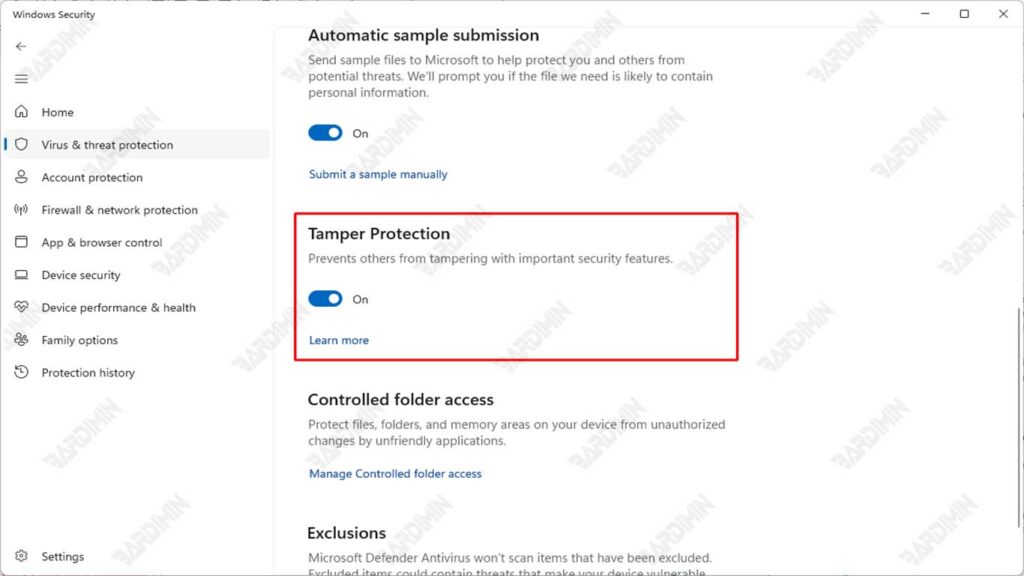
The Tamper Protection feature works by monitoring and restricting access to security settings. When enabled, any attempts to change security settings by both malicious apps and by other users will be blocked. This provides an additional layer of protection by ensuring that only users with the right access rights can make changes to those settings.
As such, Tamper Protection serves as a deterrent against unauthorized modifications, maintaining system integrity and providing peace of mind for users that their security settings remain safe from outside threats.
Using Controlled Folder Access
Controlled Folder Access is a security feature in Windows 11 that prevents unauthorized software from accessing important folders such as Documents, Pictures, and Music. This feature is designed to protect user data from threats such as ransomware that seek to encrypt these files.
Controlled Folder Access works by blocking unregistered apps from making changes to protected folders. This prevents ransomware and other malware from encrypting or deleting users’ important files. The main benefit is that it provides an additional layer of protection to maintain data integrity.
How to Enable and Adjust Controlled Folder Access Settings
Controlled Folder Access is disabled by default and needs to be enabled manually by an administrator. Here are the steps:
- Open Windows Security.
- Select Virus & threat protection.
- Under Ransomware protection, click Manage ransomware protection.
- Enable Controlled folder access.
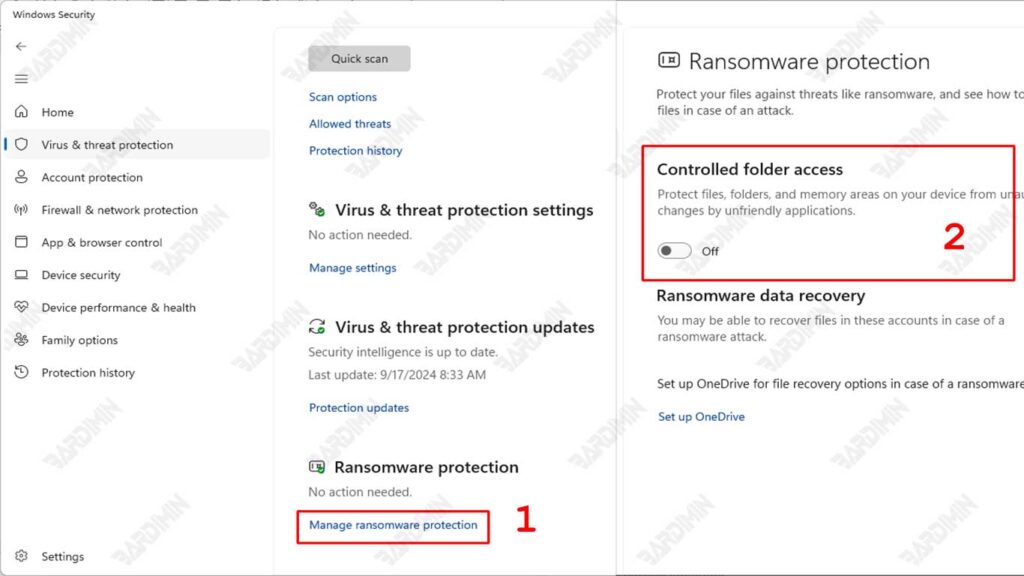
After you turn on Controlled Folder Access, you can adjust the settings:
- Click Protected folders to add or remove protected folders.
- You can also add the entire drive into the protection.
- If an app requires access to a protected folder, add it to the exclusion list.
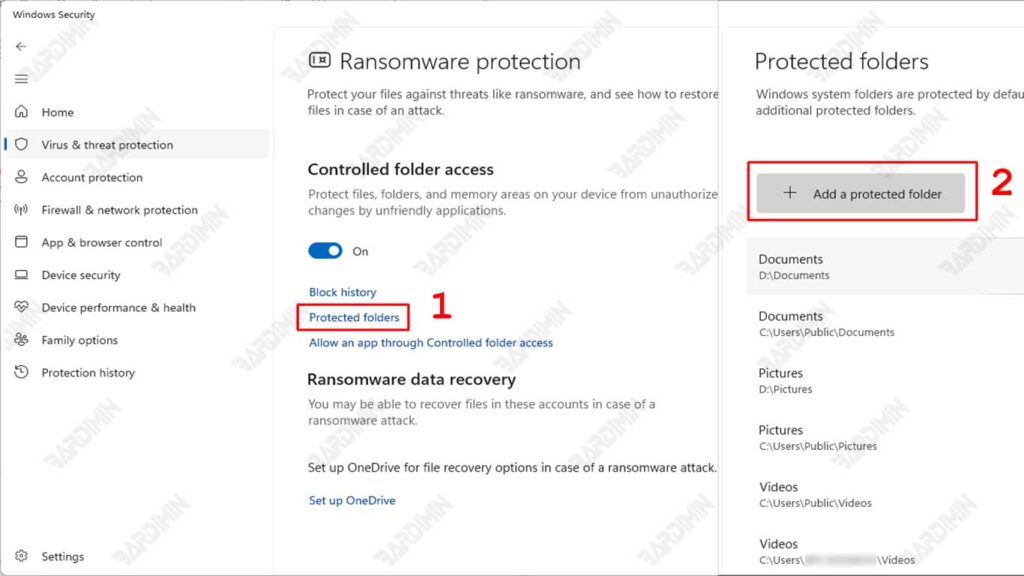
Adding an App to the Exclusion List
Adding an app to the list of exceptions within Controlled Folder Access is critical to ensuring that legitimate apps can function properly without a hitch.
Some applications, especially older software or games, may require access to write files to a protected folder, such as Documents. If an app doesn’t have this permission, it can encounter errors or even fail to function altogether.
Here are the steps to add an app to the exclusion list in Windows 11:
- Open Windows Security.
- Select Virus & threat protection.
- Under Ransomware protection, click Manage ransomware protection.
- Click on Allow an app through controlled folder access.
- Select the app you want to allow from the list of installed apps or click Browse to navigate to the location of the app that is not in the list.
- After selecting the app, click Add to add it to the exclusion list.
How to Access Controlled Folder Access Settings via Group Policy
Controlled Folder Access settings can be accessed and managed through Group Policy in Windows 11. Here are the steps to do so:
- Press Windows + R to open the Run dialog.
- Type gpedit.msc and press Enter to open Local Group Policy Editor.
- Navigate to the following path:
Computer Configuration ➤ Administrative Templates ➤ Windows Components ➤ Microsoft Defender Antivirus ➤ Microsoft Defender Exploit Guard ➤ Controlled Folder Access.
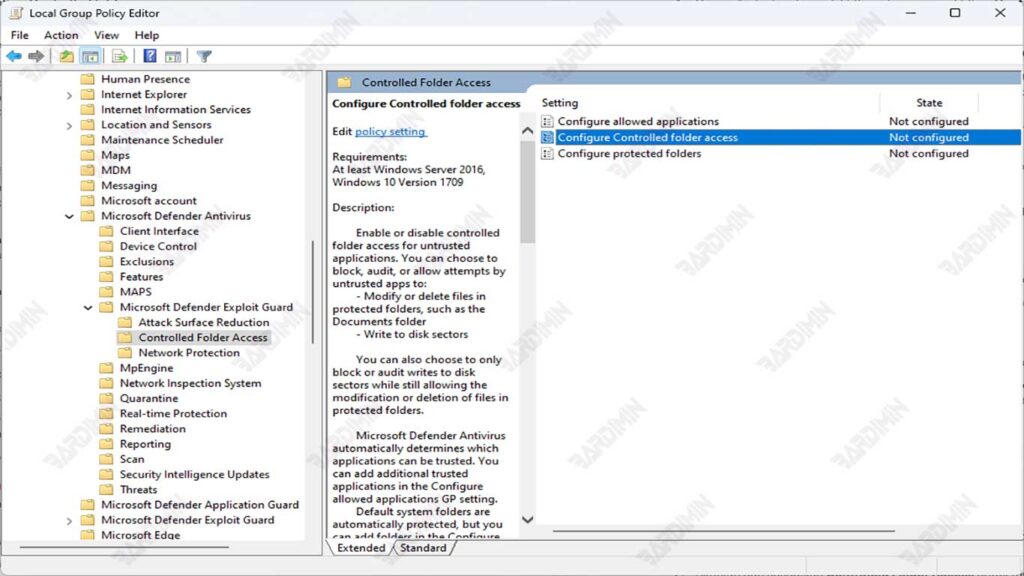
- Here, you can enable or disable Controlled Folder Access, as well as configure protected folders and add apps that are allowed to access them.
Using PowerShell to Manage Access Controlled Folder Security Settings
You can also use PowerShell to manage security settings, including Controlled Folder Access. Here are the basic steps to do so:
- Open PowerShell as Administrator by searching for “PowerShell” in the Start menu, then right-click and select “Run as administrator”.
- To enable Controlled Folder Access, use the following command:
Set-MpPreference -EnableControlledFolderAccess Enabled- To disable it, use the command:
Set-MpPreference -EnableControlledFolderAccess Disabled- To add an app to the exclusion list, use the following command (replace C:\Path\To\App.exe with the appropriate app path:
Add-MpPreference -ControlledFolderAccessAllowedApplications “C:\Path\To\App.exe”Conclusion
Here’s a summary of the key steps to protect your PC from ransomware attacks using Windows 11 security features:
- Enable Tamper Protection to prevent unauthorized changes to security settings by malicious software.
- Enable and customize Controlled Folder Access to protect important folders like Documents, Pictures, and Music from unauthorized access.
- Add apps that require access to protected folders to the exclusion list to ensure legitimate apps can function properly.
- Manage security settings through Group Policy and PowerShell to configure protection as needed.
