

Mastering Windows service dependencies is a crucial skill for system administrators. This comprehensive guide will show you how to safely and effectively add and remove Windows service dependencies using Command Prompt (CMD).
Windows Service is a program that runs in the background of the Microsoft Windows operating system without a user interface. Windows Services are frequently used to perform system-level tasks, such as running background processes, monitoring system resources, and managing system settings.
Services can be started automatically during system boot or can be run, stopped, or paused manually by the administrator. Some examples of built-in Windows services include Print Spooler, which manages printing tasks, and Task Scheduler, which allows you to schedule automated tasks. Additionally, many third-party applications install services as part of their installation process.
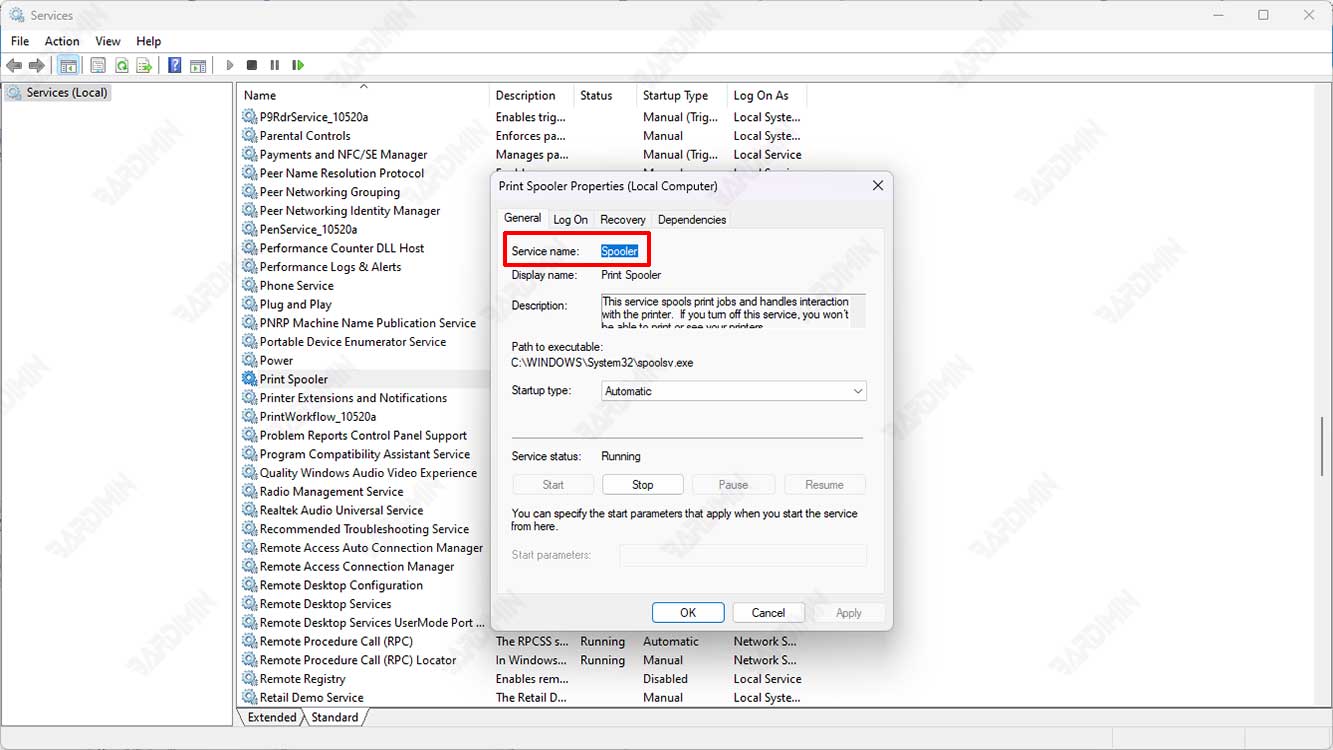
Adding service dependencies is extremely useful for ensuring services run correctly by making sure supporting services are running first. Many built-in Windows components and third-party applications have dependencies defined during installation that can be accessed from the Services GUI. To add dependencies after installation, you can use Windows Service Control (SC) commands or manually enter entries in the registry.
How to Add and Remove Windows Service Dependencies via CMD
The first step to adding or removing Windows service dependencies through Command Prompt (CMD) is to open and run Command Prompt (CMD) as an administrator.
CRITICAL NOTE: The “depend” command parameter will overwrite the existing dependency list, not add to it. For example, if Service03 already depends on Service01 and Service02, when you run the command “depend=Service04”, this will make Service01 dependent only on Service04.
1. Checking Service Dependencies
You can use the following command to check service dependencies:
sc qc [service_name]Example: “sc qc Spooler” to check Windows Print Spooler dependencies.
Take note of all service dependencies if you plan to add more dependencies, as shown in the next example.
2. Adding Service Dependencies
To add dependencies, you can use the following command:
sc config Service03 depend= Service04This command means Service03 won’t start until Service04 is already running. If you stop Service04, Service03 will automatically stop.
To add multiple services at once, you can use the command:
sc config Service03 depend= Service01/Service02/Service04In this example, let’s say the service check from the first step shows that Service03 depends on Service01 and Service02.
If you want to add Service04 as another dependency for Service03, you must include the previous dependencies as well.
3. Removing Service Dependencies
You cannot remove individual dependencies if a service relies on multiple services. All you can do is remove all dependencies using the following command:
sc config Service03 depend=/This command will remove all dependencies from Service03.
Practical Tips and Security Considerations
Before modifying Windows service dependencies, it’s recommended to:
- Create system backups or restore points
- Document current service configurations
- Understand the impact of changes on your system
- Perform changes in a testing environment first
- Ensure you have adequate administrator privileges
- Check official Microsoft documentation for best practices
Common Mistakes to Avoid
Some common errors that frequently occur when managing Windows service dependencies:
- Forgetting to document existing dependencies before making changes
- Not running CMD as administrator
- Misspelling service names in commands
- Modifying dependencies of critical system services without proper understanding
By following this guide, you can confidently manage Windows service dependencies and avoid unwanted system issues. Always remember to exercise caution when making changes at the operating system level.
