

Spending long hours in front of a computer has become commonplace in modern life, both for work and daily activities. However, improper body position when using a workstation often leads to health problems such as back pain, muscle tension, and eye fatigue.
Ergonomically designed workstations not only help prevent such health problems but can also increase productivity. Properly positioning the devices and work equipment makes your body feel more comfortable, improving focus and efficiency at work.
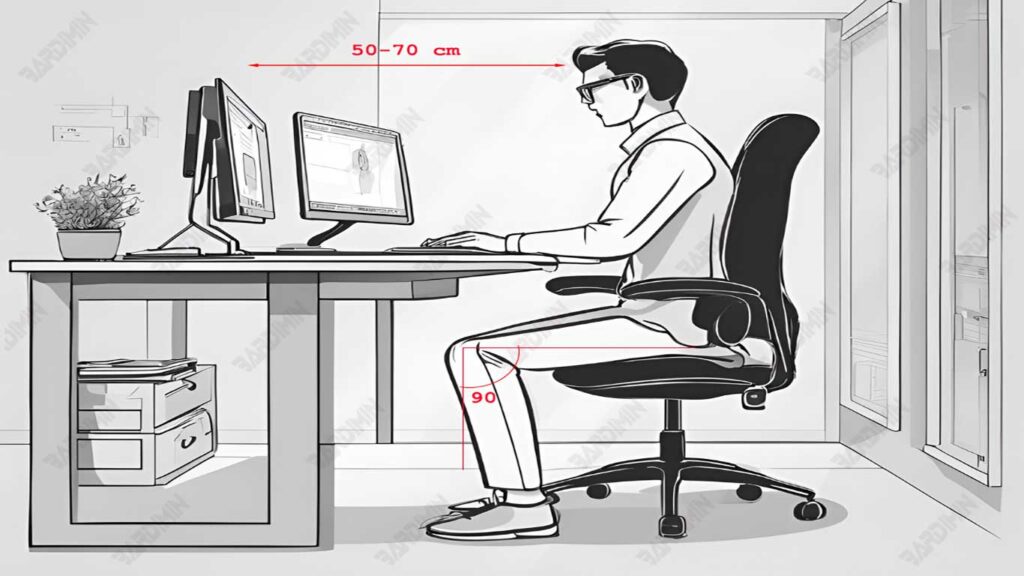
1. Proper Positioning for Keyboard and Mouse
Maintaining the correct keyboard and mouse position is the first step to creating a comfortable workplace. Improper positioning can cause strain on the wrists and arms, which can lead to injuries such as carpal tunnel syndrome.
How to set the keyboard position:
- Place the keyboard so that your wrist stays straight while typing.
- Make sure the keyboard is at a height where your arms are almost parallel to the desk.
How to Use the Mouse:
- Move the mouse with your arms, not just your wrists, to reduce muscle tension.
- Choose an ergonomically designed mouse that fits your hand’s size.
If your keyboard is too high and your wrist is bent, use a support such as a keyboard stand or a stack of books to keep your arms horizontal. Another alternative is to adjust the chair’s height to fit the table.
2. Adjust the Height of the Chair Correctly
Improper chair height often leads to poor posture when working in front of a computer. Adjusting the chair height correctly is essential to maintain comfort and prevent pain in the back and neck.
How to Adjust the Height of the Chair:
- When you sit, make sure your elbows are parallel to the table. This will make your hands comfortable when typing or using the mouse without bending over.
- Set up the chair so that your thighs are parallel to the floor and your feet can step on well. If your feet are not touching the floor, use the footrest to support your position.
Support for Lower Back:
- Lean your lower back against the seat back to maintain the natural shape of the spine. Choose a chair that has lumbar support, or add a small pillow if necessary.
- Avoid bending over by making sure the seat back supports your back well.
3. Adjust the Monitor Position
An inappropriate position of the monitor can cause strain on the neck and eyes, especially if you frequently look down or look up while working. Properly positioning the monitor is essential for maintaining comfort and health while using the computer.
Tips for Setting the Monitor Position:
- Make sure the monitor screen is level with your eyes, so you don’t have to look down or look up to see it.
- The top of the screen should be slightly below your line of sight to keep your head and neck in a comfortable position.
- Keep the monitor about 50-70 cm away from your eyes, or as far away as your arm when sitting.
If your monitor is too low, use a monitor stand or a stack of books to raise it to eye level. Alternatively, choose a monitor that can be adjusted in height to get the ideal position without the need for additional tools.
4. Use Leg Braces If Necessary
Keeping the feet in a stable and comfortable position while sitting is essential for an ergonomic workstation. If your feet are not touching the floor, there can be excessive pressure on the thighs, which can affect blood circulation and cause discomfort.
Why Are Leg Braces Important?
- Helps maintain body balance and supports the legs well.
- Reduces pressure on the lower back and thighs, so that posture remains good.
Tips for Using Leg Braces:
- Choose a sturdy, angle-adjustable foot support for maximum comfort.
- Make sure your foot can rest comfortably on the support, with a knee angle of about 90 degrees.
If you don’t have leg support, you can use household items like small boxes, stacks of books, or sturdy containers instead. Make sure the surface of the item is stable and not slippery.
5. Avoid Glare from Light
Light bouncing off a window or lamp onto a monitor screen can interfere with vision and make your eyes tired quickly. Therefore, it is important to organize the workplace to avoid glare that can interfere with concentration while working.
Tips for Reducing Glare:
- Position the monitor so that it is not directly aligned with a light source, such as a window or lamp. Try to keep the monitor perpendicular to the window.
- If the light from the window is too bright, use curtains or curtains to reduce the light entering the room.
Use Anti-Glare Filter:
- Install an anti-glare filter on the monitor to reduce light reflections.
- Choose a good quality filter that doesn’t compromise the clarity of the screen.
If your desk can’t be moved away from a well-lit area, adjust the angle of the monitor screen to a better position. For example, tilt the monitor slightly down to reduce light reflections from the lights on the ceiling.
6. Rest Your Eyes
Staring at a computer screen for too long can make the eyes tired, dry, and irritated, known as Computer Vision Syndrome (CVS). Providing rest time for the eyes is essential to maintain healthy vision.
20-20-20 Technique:
- Every 20 minutes, take your eyes off the screen and look at an object that is 20 feet away for 20 seconds. This helps relax the eye muscles and reduce tension.
- Use an app or reminder to set regular breaks.
Reduce Screen Brightness:
- Adjust the brightness of the screen to the lighting of the room. A screen that is too bright or dim can make your eyes work harder.
- Enable Night Light mode or blue light filter on your device to reduce blue light exposure, especially when working at night.
If your eyes feel dry or tired, use eye drops designed to treat dry eyes caused by computer use. Don’t forget to blink regularly to keep it moisturized.
7. Resize Text in Browser
Small text in the browser can make it difficult for the eyes to read comfortably, especially when using the computer for a long time. Resizing text is an easy way to improve visual comfort when surfing the internet.
Steps to Change Text Size in Browser:
Google Chrome:
- Click the three-dot icon in the top right corner.
- Select Settings > Appearances.
- In the Font Size section, select the desired text size or adjust it through additional settings.
Mozilla Firefox:
- Click the three-line menu icon in the top right.
- Select Settings > General > Fonts and Colors.
- Adjust the text size to your liking.
Safari (Mac):
- Click the Safari menu at the top of the screen.
- Select Preferences > Websites > Zoom Page.
- Set the zoom level to zoom in on the text on the web page.
If the text on a webpage feels small in Google Chrome, go to Settings, go to the Appearance section, and change the text size to “Large” or “Very Large.” Alternatively, you can use the Ctrl + “+” (Windows) or Command + “+” (Mac) key combination to zoom in on the page directly.
