

As IT professionals, gamers, or technicians, understanding system specifications is a fundamental skill that directly impacts productivity and gaming experience. This comprehensive guide discusses various technical methods for accessing System Properties in Windows 10 and 11, complete with in-depth analysis for high-performance needs and troubleshooting.
Why is Monitoring System Properties Critical for Power Users?
System Properties doesn’t just display basic system specifications. This section provides access to advanced system configuration, environment variables, remote desktop settings, performance options, and system protection features. For gamers, information about RAM capacity, processor capabilities, and system architecture determines compatibility with modern games and rendering performance optimization.
For IT technicians, System Properties serves as the starting point for system diagnostics, hardware compatibility verification, and system restore point configuration. Accurate data from System Properties is essential for determining upgrade paths and compatibility checks before enterprise software installation.
System Properties Access Methods: From Basic to Advanced Techniques
1. Keyboard Shortcut (Maximum Efficiency)
Use the key combination Windows + Pause/Break to open System Properties instantly. This method is consistent across all modern Windows versions and is the preferred method for technicians who need real-time access without GUI navigation.
2. Windows Search Integration (Modern Workflow)
Click the Search icon on the taskbar, type “about” then select “About your PC“. This Windows 11 interface presents system information in an organized layout including Windows specifications and Device specifications.

Caption: Access System Properties through Windows Search – method optimized for Windows 11
3. File Explorer Context Menu (Traditional Approach)
Open File Explorer, navigate to “This PC“, right-click and select “Properties“. This method opens the System Properties classic view familiar to legacy Windows version users.
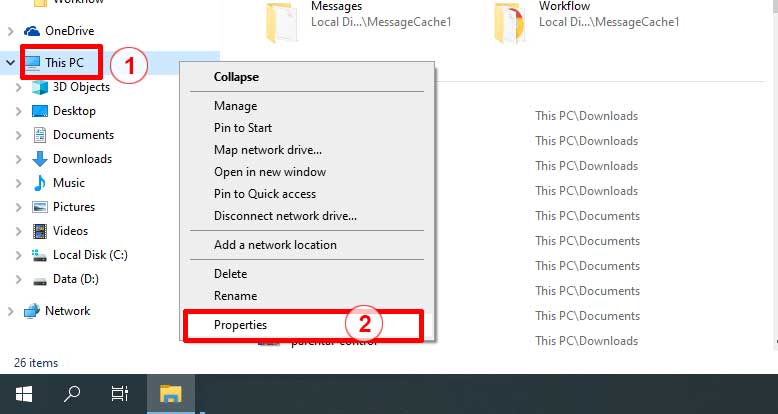
Caption: Properties context menu in File Explorer – classic method that remains relevant
4. System Information (msinfo32) – Comprehensive Analysis
Press Windows + R to open the Run dialog, type “msinfo32” and press Enter. System Information provides depth analysis covering:
- Hardware Resources: IRQ assignments, DMA usage, memory addresses
- Components: Detailed peripheral information and driver status
- Software Environment: Running tasks, loaded modules, startup programs
5. Command Line & PowerShell (Enterprise Grade)
For system administrators and power users, command line interface provides scripting-friendly access:
systeminfo | findstr /C:"Total Physical Memory" /C:"Available Physical Memory"PowerShell alternatives with granular control:
Get-CimInstance Win32_ComputerSystem | Select-Object Name, Manufacturer, Model, TotalPhysicalMemory6. Control Panel Method (Legacy Access)
Open Control Panel, navigate to System and Security” → “System“. This method remains useful for systems experiencing issues with the modern interface.
7. Direct Run Command (Quick Access)
Press Windows + R, type “sysdm.cpl” to open System Properties directly. Alternative command: “control system“.
Technical Specifications Deep Dive
| Component | Technical Details | Gaming Implications | Professional Use |
|---|---|---|---|
| Processor | Model, base/boost clocks, core/thread count, architecture | Determines FPS stability and rendering capability | Multithreading performance for virtualization |
| Installed RAM | Capacity, speed (MHz), timings, dual/single channel | Affects loading times and background processes | Multitasking capacity and application responsiveness |
| System Type | 64-bit vs 32-bit, UEFI/BIOS firmware | Game compatibility and memory addressing | Software compatibility and security features |
| Windows Edition | Version, build number, update status | DirectX support and gaming features | Enterprise features and update management |
| Product ID | Activation status, edition type | Windows Store and Xbox integration | Licensing compliance and activation troubleshooting |
Advanced System Configuration Techniques
Performance Optimization
From System Properties, access Advanced system settings → Performance Settings. Configure visual effects for gaming optimization:
- Adjust for best performance: Disable all visual effects
- Custom: Maintain “Smooth edges of screen fonts” for readability
Virtual Memory Management
In the Advanced tab, click Change under Virtual memory. For gaming systems:
- Set custom size: Initial = 1.5 × RAM, Maximum = 3 × RAM
- Location on SSD for better performance
System Protection & Restore Points
The System Protection tab allows configuration of restore points. Critical before:
- Driver updates especially GPU drivers
- Major Windows updates
- Complex software installations
Troubleshooting Common System Properties Issues
Issue 1: System Properties won’t open via Windows + Pause/Break
Resolution: Use alternative method through Run dialog: sysdm.cpl or open Control Panel → System and Security → System. Check keyboard functionality and ensure the Pause/Break key functions normally.
Issue 2: RAM information inaccurate or not fully detected
Resolution: Run Windows Memory Diagnostic Tool, check BIOS/UEFI settings for memory recognition, ensure RAM is properly installed, and update motherboard BIOS to the latest version. Verify through Task Manager → Performance tab.
Issue 3: Windows activation status not updating or showing not genuine
Resolution: Run slmgr /ato as administrator to refresh activation status. If problem persists, use Windows Activation Troubleshooter or reactivate using digital license or product key.
Issue 4: System Properties displays wrong processor information
Resolution: Update motherboard BIOS, install latest chipset drivers from manufacturer website, and verify through CPU-Z for cross-checking processor information. Ensure there are no compatibility issues with Windows version.
Best Practices for Professional Environment
- Use System Information (msinfo32) for comprehensive hardware inventory and system documentation
- Export system specifications using
systeminfo > system_specs.txtfor audit trails and inventory management - Monitor virtual memory settings periodically for systems with high memory usage patterns
- Verify Windows edition and activation status before performing major system upgrades
- Utilize DirectX Diagnostic Tool (dxdiag) for detailed graphics subsystem analysis and driver verification
- Implement regular system restore points before critical operations like driver updates or major software installations
- Use Windows Performance Monitor for real-time system performance tracking and bottleneck identification
Advanced Monitoring Tools for Power Users
For more in-depth analysis, consider additional tools:
- CPU-Z: Detailed processor, motherboard, and memory specifications
- GPU-Z: Comprehensive graphics card information and monitoring
- HWiNFO: Enterprise-grade system monitoring and reporting
- Speccy: User-friendly system information tool for quick diagnostics
By mastering various System Properties access methods and advanced configuration techniques, technicians, gamers, and IT professionals can perform comprehensive system analysis, performance tuning, and efficient troubleshooting with confidence and precision. Deep understanding of System Properties is a foundational skill for optimal system management and performance optimization.
