

Command Prompt is a handy tool in the Windows 11 operating system. With Command Prompt, users can access various advanced features and commands that cannot be found in a graphical interface. This tool allows you to do many things, from managing files to improving system performance to fixing issues that may not be visible.
Bardimin will guide some Command Prompt tricks and commands that can help you increase productivity, give you more control over your system, and speed up the completion of important tasks in Windows 11.
How to Open a Command Prompt
To start using Command Prompt in Windows 11, the first step is to open the Command Prompt window. Here are the steps:
- Click the Start button or press the Windows key on your keyboard.
- Type cmd in the search bar.
- Select Command Prompt from the search results. To access all features and run commands as an administrator, right-click on Command Prompt, and then select Run as Administrator.
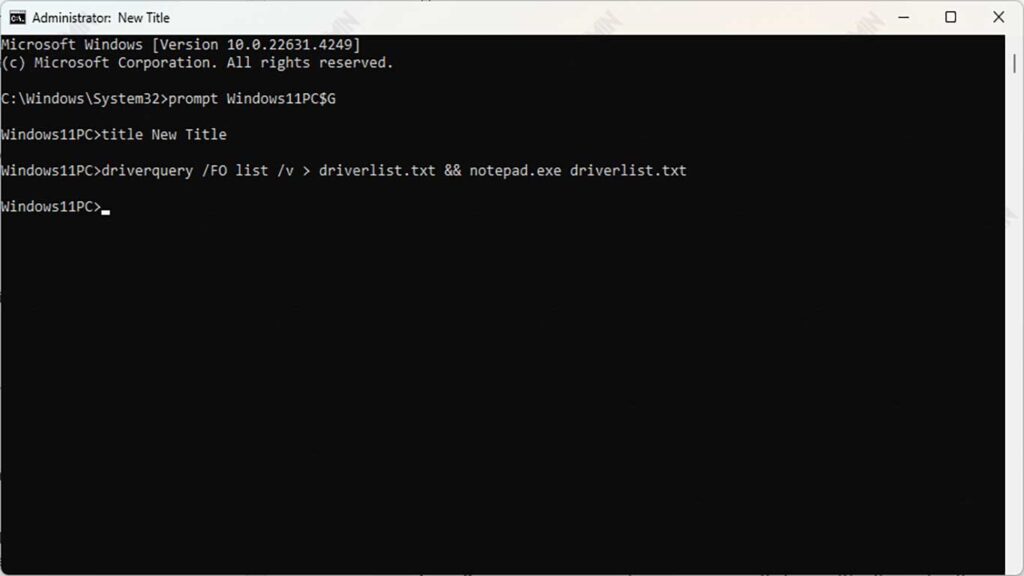
1. Changing the Prompt Display with prompt Windows11PC$G Commands
In Command Prompt, you can change the appearance of the prompt to better suit your wishes or provide certain information. One way to do this is to use the prompt command to override the default text that usually appears, such as C:UsersUserName>.
To change the appearance of the prompt to make it more attractive, you can use the following command:
prompt Windows11PC$GHere is an explanation of this command:
- prompt: This command is used to change the text displayed on the prompt line.
- Windows11PC: This is a custom text that will replace the default text. You can replace “Windows11PC” with a name or other text as you like.
- $G: This is a special character that represents the > symbol at the end of the prompt. If you don’t use $G, your prompt won’t have a >.
2. Changing the Window Title Command Prompt
In addition to customizing the appearance of text and colors, you can also change the window title Command Prompt to give it a special identification or simply add a touch of personalization. By default, the title of the Command Prompt window is “Command Prompt,” but you can change it to whatever you want by using the title command.
Here’s how to do it:
title New TitleExplanation of this command:
- title: This command is used to change the title of the Command Prompt window.
- New Title: This is the new title that will be displayed at the top of the Command Prompt window. You can replace this text with whatever you want, such as “Administrator Tools” or “System Diagnostics.”
3. Viewing the Installed Drivers
To resolve driver issues in Windows 11, you can use the driverquery command to view all currently installed drivers. Here’s an explanation of the command and how to read the results:
driverquery /FO list /vCommand Parameter Explanation:
- driverquery: This command is used to display installed drivers.
- /FO list: This parameter sets the output format. The results will be displayed in the form of a list.
- /v: This flag activates verbose mode, providing more complete information about each driver.
4. Saving the Output to a Text File
It’s true, the results of a driverquery command can be very long and difficult to see. Fortunately, you can easily save the output of these commands into a text file to make it easier to manage and search. Here are the steps:
driverquery /FO list /v > driverlist.txtCommand Explanation:
- driverquery /FO list /v: This is the same command used earlier to display a list of drivers with complete information.
- >: This is the symbol used to switch the output from a command to a file.
- driverlist.txt: This is the name of the file where the output will be stored. You can rename this file as you wish.
5. Combining Two Commands in a Command Prompt
In Command Prompt, you can combine multiple commands into a single, more efficient line. This is known as “chaining” or command merging. This way, you can run multiple commands in a row without having to type them one by one.
One common way to combine commands is to use the &&& operator. Commands that use && ensure that the second command will only be executed if the first command succeeds.
For example, to see a list of drivers installed on the system and open the resulting file in Notepad, you can run the following command:
driverquery /FO list /v > driverlist.txt && notepad.exe driverlist.txtCommand explanation:
- driverquery /FO list /v: This command displays a list of drivers installed on your computer in list format with detailed information (option verbose).
- > driverlist.txt: This section stores the results of driverquery commands into a text file named driverlist.txt.
- &&: This operator is used to combine commands. The second command will only be executed if the first command succeeds.
- notepad.exe driverlist.txt: This section opens a driverlist.txt file that was recently created with the Notepad app.
6. Button Function in Windows 11 Command Line
Function keys (F1 to F12) are helpful in Windows 11’s Command Line, improving efficiency when executing commands. Here is an explanation of the functions of the F1 to F9 keys:
- F1: Repeat the last command, one character at a time.
- F2: Enter the last command until the specified character.
- F3: Repeat the last command in full.
- F4: Delete the character in the last command until the specified character.
- F5: Repeat the last command (without typing).
- F6: Enter the Control-Z character (input end mark).
- F7: View the history of commands that have been executed.
- F8: Search for commands in the history by typed characters.
- F9: Execution of a specific command from the history by number.
7. View Installed Apps
You can see all the apps installed on your Windows 11 with the following command:
wmic product get nameIf the list of apps is too long to display in a command prompt window, you can switch the result to a text file and open it directly with Notepad. Use this command:
wmic product get name > productname.txt && notepad.exe productname.txtCommand Explanation:
- wmic product get name: This command retrieves and displays the names of all the applications installed on the system.
- >: This operator is used to redirect results to a file.
- productname.txt: The name of the text file where the results will be saved.
- && notepad.exe productname.txt: Once the file is created, Notepad will automatically open to display the contents of the file.
8. Delete Temporary Files
If you’re short on storage space, it’s a good idea to clean the Temp folder used by Windows 11 to store temporary data. Here’s how to do it:
del /q /f /s %temp%\*Command Explanation:
- del: Command to delete the file.
- /q: Executes the command without displaying a confirmation message for each deleted file.
- /f: Forcing deletion of read-only files.
- /s: Deletes files from all subfolders.
- %temp%: A variable that points to the current user’s temporary folder.
- *: Indicates that all files in the folder will be deleted.
9. Delete Temporary Files in the Global Folder
To clean up the global temp area in Windows 11 use Command Prompt as Administrator. Once the Command Prompt is open with administrator privileges, enter the following command to delete all the files in the C:\Windows\Temp folder:
del /s /q C:\Windows\Temp\*Command Explanation:
- del: Command to delete the file.
- /s: Deletes files from all subfolders in the Temp folder.
- /q: Executes the command without asking for confirmation for each deleted file.
10. Copying Command Results to the Clipboard
If you want to copy the results of commands to the Clipboard in Windows 11 without saving them to a text file, you can do so easily.
To copy the result of the ipconfig /all command to the Clipboard, use this command:
ipconfig /all | clipCommand Explanation:
- ipconfig /all: This command shows complete information about the network settings on your computer.
- |: This operator is used to redirect the result of the previous command (i.e. ipconfig /all) to the next command.
- clip: This command will copy the received results to the Windows Clipboard.
Conclusion
Using Command Prompt in Windows 11 can give you full control over the operating system. With the above commands, you can increase efficiency and complete many tasks faster.
